
Blog
QuickBooks Desktop 2024 Download Guide: Installation, System Requirements & Upgrade (2026)

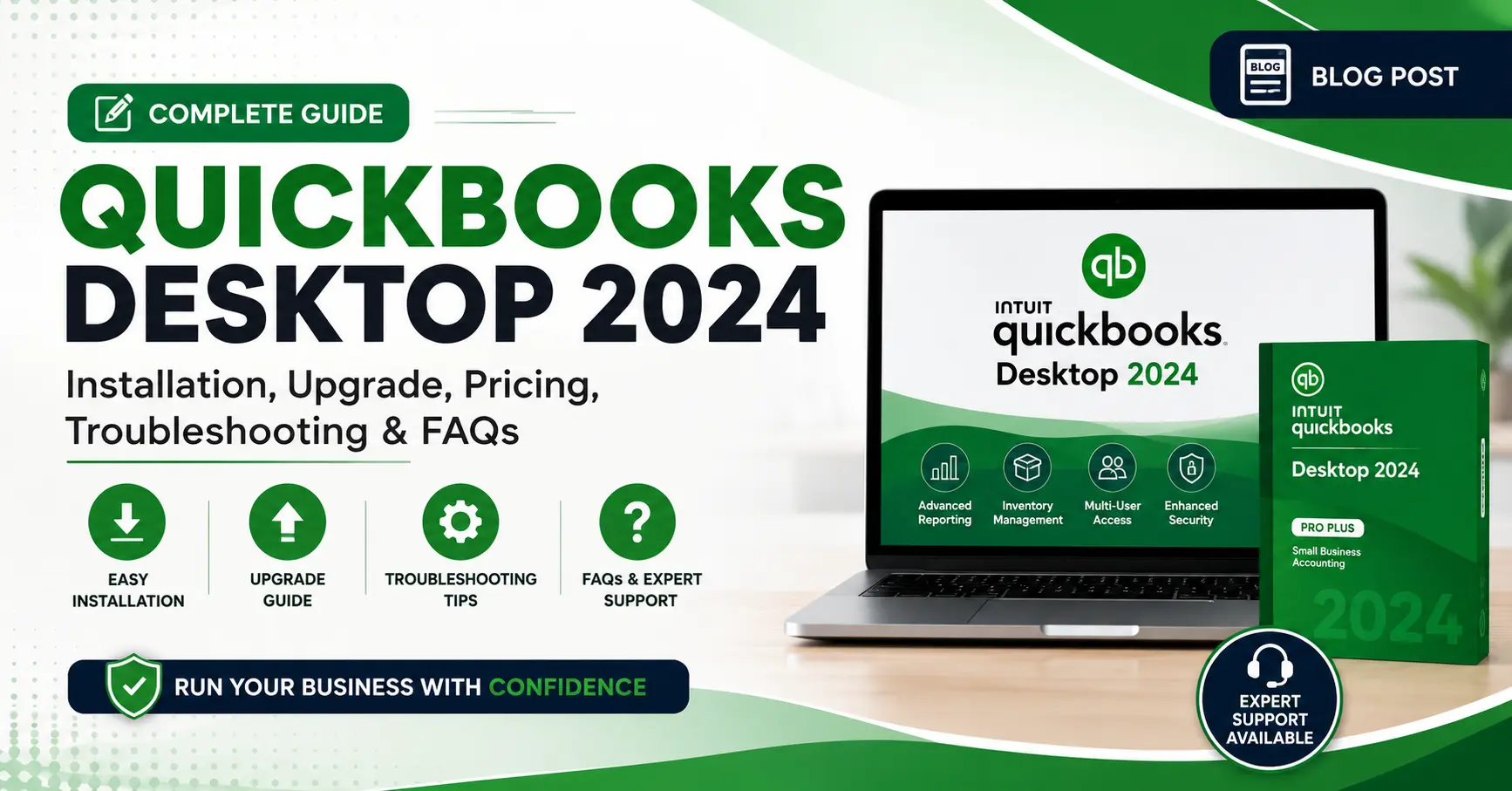
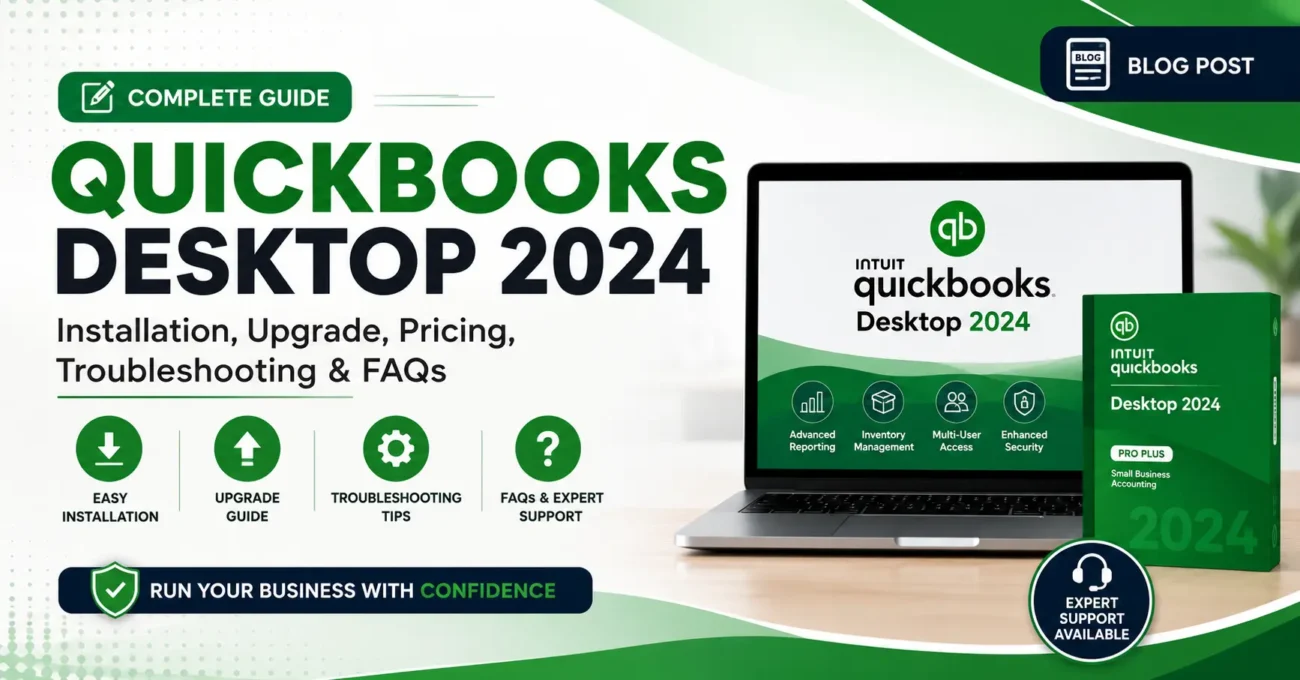
If you’re searching for a reliable way to download QuickBooks Desktop 2024, you’re in the right place. Whether you’re installing QuickBooks for the first time, upgrading from an older version, or setting up a multi-user accounting environment, understanding the correct installation process is essential.
QuickBooks Desktop has remained one of the most trusted accounting platforms for small businesses, accountants, contractors, wholesalers, and growing enterprises. While cloud accounting solutions continue to gain popularity, many businesses still prefer the Desktop edition because it offers complete control over company files, powerful reporting, inventory management, and advanced accounting features without relying entirely on a web browser.
This guide explains everything you need to know about QuickBooks Desktop 2024 Download, including system requirements, supported editions, installation methods, licensing, activation, upgrades, common installation issues, and practical tips for a smooth deployment.
Table of Contents
- What Is QuickBooks Desktop 2024?
- Why QuickBooks Desktop 2024 Still Matters
- Who Should Download QuickBooks Desktop 2024?
- Main Features of QuickBooks Desktop 2024
- What’s New Compared with Previous Versions
- Editions Available
- Benefits for Businesses
- Supported Industries
- Frequently Asked Questions
What Is QuickBooks Desktop 2024?
QuickBooks Desktop 2024 is Intuit’s latest supported desktop accounting software designed to help businesses manage financial operations from a local computer or a secure network environment.
The software combines bookkeeping, invoicing, payroll support, inventory tracking, banking, reporting, and tax management into a single application. Instead of switching between multiple tools, users can handle most day-to-day accounting tasks from one central dashboard.
Unlike browser-based accounting systems, QuickBooks Desktop stores company data locally or on a dedicated server, giving organisations greater flexibility over file management and multi-user access.
Businesses choose Desktop because it offers:
- Detailed financial reporting
- Advanced inventory tracking
- Faster local performance
- Industry-specific editions
- Flexible multi-user environments
- Powerful payroll integration
- Customisable forms and reports
For many organisations, especially those with complex accounting workflows, these capabilities remain highly valuable.
Why QuickBooks Desktop 2024 Matters More Than Ever
The 2024 release holds particular importance because it represents the latest generation of QuickBooks Desktop available to most Pro and Premier users.
Businesses currently running older releases eventually lose access to connected services such as payroll updates, online banking, security improvements, and technical support. Upgrading helps ensure continued compatibility with supported features while maintaining a more secure accounting environment.
For organisations that rely on desktop-based accounting rather than cloud software, moving to QuickBooks Desktop 2024 provides access to ongoing service availability until the published support lifecycle ends.
Who Should Download QuickBooks Desktop 2024?
QuickBooks Desktop 2024 is suitable for a wide range of businesses and professionals.
It can be a practical choice for:
Small Business Owners
Manage invoices, expenses, customers, suppliers, inventory, and financial reports from one application.
Accountants & Bookkeepers
Maintain accurate financial records, prepare tax information, reconcile accounts, and produce professional reports.
Construction Companies
Track projects, contractors, estimates, job costing, and purchase orders more efficiently.
Wholesale & Manufacturing Businesses
Monitor inventory levels, sales orders, supplier purchases, and warehouse activity.
Retail Businesses
Organise customer transactions, product inventory, and financial reporting from a single platform.
Professional Service Firms
Consultants, agencies, architects, engineers, and legal professionals can manage billing, expenses, and client payments more effectively.
Key Features of QuickBooks Desktop 2024
QuickBooks Desktop 2024 introduces several improvements aimed at enhancing productivity, reliability, and usability.
Faster Performance
Optimisations throughout the software improve loading times and reduce delays when opening company files, generating reports, or navigating between modules.
This is particularly helpful for businesses working with large accounting databases.
Improved Security
Security remains a major focus in the latest release.
The software includes updated security technologies designed to better protect financial information while supporting modern authentication and data protection practices.
Businesses handling confidential financial records benefit from stronger safeguards against unauthorised access.
Smarter Search Tools
Finding transactions has become more efficient.
Users can quickly locate:
- Customers
- Vendors
- Products
- Inventory items
- Purchase orders
- Invoices
- Reports
Improved filtering reduces the time spent searching through large datasets.
Better Inventory Management
Businesses managing physical products benefit from enhanced inventory tools that simplify stock monitoring.
Inventory improvements include:
- Better item searching
- Improved organisation
- Faster inventory lookups
- More accurate reporting
- Enhanced product tracking
These features support businesses with extensive product catalogues or warehouse operations.
Updated Payroll Support
Payroll functionality continues to evolve with updated tax tables and improved payroll processing for eligible subscribers.
This helps businesses manage employee payments more accurately while reducing manual calculations.
Improved Banking Experience
Quick Books Desktop 2024 provides a smoother experience when working with connected banking services.
Users can:
- Download transactions
- Match banking records
- Simplify reconciliation
- Improve bookkeeping accuracy
This reduces repetitive data entry and helps maintain organised financial records.
Available Editions
QuickBooks Desktop 2024 is available in several editions to meet different business requirements.
QuickBooks Desktop Pro Plus
Designed for small businesses requiring core accounting functionality.
Ideal for:
- Basic bookkeeping
- Invoicing
- Expense tracking
- Customer management
QuickBooks Desktop Premier Plus
Adds industry-specific tools tailored to sectors such as:
- Contractors
- Manufacturing
- Professional Services
- Retail
- Nonprofits
QuickBooks Enterprise
Built for growing organisations requiring advanced capabilities, including:
- Advanced inventory
- Advanced pricing
- Enhanced reporting
- Higher user limits
- Multi-company management
Enterprise remains the most feature-rich Desktop edition.
Major Benefits for Businesses
Using QuickBooks Desktop 2024 can help businesses:
- Improve accounting accuracy
- Save time through automation
- Produce detailed financial reports
- Manage inventory efficiently
- Simplify payroll processing
- Track income and expenses
- Monitor cash flow
- Support multi-user collaboration
- Organise tax information
- Improve decision-making with better reporting
Why Many Businesses Still Prefer Desktop
Although cloud accounting has grown rapidly, desktop accounting continues to appeal to organisations that value performance, local file control, and advanced customisation.
Businesses with established accounting workflows often prefer QuickBooks Desktop because it provides a familiar environment without requiring significant operational changes.
For companies managing large financial datasets or industry-specific requirements, Desktop remains a dependable solution.
Key Takeaways
- QuickBooks Desktop 2024 is the latest supported desktop edition for Pro and Premier users.
- It offers improved performance, security, inventory management, payroll functionality, and reporting.
- Multiple editions are available to suit different business sizes and industries.
- Desktop accounting remains a practical option for organisations that prefer local data management and robust accounting features.
QuickBooks Desktop 2024 System Requirements, Compatibility & Multi-User Setup
Choosing the right hardware and software environment is one of the most important steps before installing QuickBooks Desktop 2024. Even if you have the correct installer and licence, the software may not perform as expected if your system doesn’t meet the recommended requirements.
This section explains the minimum and recommended specifications for Windows and Mac users, software compatibility, network hosting requirements, and best practices for setting up a reliable multi-user environment.
QuickBooks Desktop 2024 System Requirements
Before downloading QuickBooks Desktop 2024, verify that your computer meets the latest hardware and software requirements. Doing so helps prevent installation errors, improves overall performance, and ensures compatibility with connected services such as payroll, banking, and online updates.
Windows Operating System Requirements
QuickBooks Desktop 2024 is designed exclusively for 64-bit Windows operating systems. It no longer supports 32-bit Windows installations.
Supported Windows Versions
QuickBooks Desktop 2024 supports:
- Windows 11 (64-bit)
- Windows Server 2022 (Standard and Essentials)
- Windows Server 2019 (Standard and Essentials)
- Windows Server 2016 (Standard and Essentials)
Unsupported Environments
QuickBooks Desktop is not designed for:
- 32-bit Windows editions
- Windows 10 S Mode
- Linux operating systems
- ARM-based Windows devices
- Emulated or virtualised Windows environments that do not meet Intuit’s compatibility requirements
Using unsupported operating systems may lead to installation failures or reduced functionality.
Windows 10 Compatibility
Although QuickBooks Desktop 2024 can still be installed on some Windows 10 systems, Microsoft ended mainstream security support for Windows 10 in October 2025.
For improved security, reliability, and long-term compatibility, upgrading to Windows 11 or a supported Windows Server edition is recommended.
Minimum Hardware Requirements
QuickBooks Desktop performs best on modern computers with adequate processing power and memory.
Processor
Minimum:
- 2.4 GHz processor
Compatible processors include:
- Intel x64 processors
- AMD x64 processors
ARM processors are not officially supported.
Memory (RAM)
Recommended memory depends on the number of users.
Workstations
- Minimum: 8 GB RAM
- Recommended: 16 GB RAM
Servers
- 1–5 Users: 8 GB
- Around 10 Users: 12 GB
- Around 15 Users: 16 GB
- 20+ Users: 20 GB or more
More available memory generally results in smoother performance when multiple users access the company file simultaneously.
Storage Requirements
QuickBooks Desktop requires approximately:
- 2.5 GB available storage for installation
- Additional space for company files
- Extra storage for backups
Businesses working with large accounting databases should allocate significantly more disk space than the minimum requirement.
SSD Recommended
Installing QuickBooks and storing company files on a Solid-State Drive (SSD) provides noticeably faster performance than traditional hard drives.
Benefits include:
- Faster startup
- Quicker report generation
- Improved file access
- Better overall responsiveness
Display Requirements
Recommended display settings include:
- Minimum resolution: 1280 × 1024
- Support for dual monitors
- Default Windows DPI settings for optimal interface scaling
Higher-resolution displays provide a better experience when working with reports and accounting dashboards.
Internet Requirements
An internet connection is required for several QuickBooks services, including:
- Product activation
- Payroll updates
- Banking services
- Software updates
- Licence verification
- Online help resources
A broadband connection is recommended for the best experience.
Browser Compatibility
Google Chrome is commonly used for QuickBooks online features and integrated web services.
Keeping your browser updated helps ensure compatibility with connected services.
Microsoft Office Compatibility
QuickBooks Desktop integrates with several Microsoft Office products.
Supported versions include:
Microsoft Excel
- Excel 2021
- Excel 2019
- Excel 2016
- Microsoft 365
Users can export financial reports directly into Excel for further analysis.
Microsoft Word
Supported for:
- Invoice templates
- Letters
- Customer correspondence
- Business documents
Microsoft Outlook
Compatible versions include:
- Outlook 2016
- Outlook 2019
- Outlook 2021
- Microsoft 365 Outlook
Outlook integration allows users to send invoices, reports, and other documents directly from QuickBooks.
Email Service Compatibility
QuickBooks Desktop supports several email providers, including:
- Gmail
- Outlook.com
- Yahoo Mail
- Microsoft 365
- SMTP-compatible email services
This simplifies sending invoices, statements, and customer communications.
PDF Compatibility
Adobe Acrobat Reader (or another compatible PDF reader) is recommended for viewing and printing:
- Payroll forms
- Tax forms
- Reports
- Business Planner documents
Antivirus Compatibility
QuickBooks Desktop 2024 is designed to work alongside many popular antivirus and endpoint security solutions.
Commonly used products include:
- Microsoft Defender
- Norton
- McAfee
- Bitdefender
- Avast
- Kaspersky
- ESET
- Sophos
- Trend Micro
- Webroot
If QuickBooks experiences connectivity or installation issues, creating appropriate firewall and antivirus exceptions may be necessary.
Mac System Requirements
QuickBooks Desktop Mac Plus 2024 has its own hardware and software requirements.
Supported Operating System
Compatible with:
- macOS Monterey (version 12 or later)
Support for newer compatible macOS versions depends on ongoing vendor updates.
Processor
Supported hardware includes:
- Intel-based Macs
- Apple Silicon (supported according to the product’s compatibility guidance)
Memory
Minimum:
- 2 GB RAM
Recommended:
- 4 GB RAM or higher
More RAM improves multitasking and report generation.
Storage
Minimum available storage:
- 250 MB
Additional space is required for:
- Company files
- Attachments
- Backups
- Software updates
Internet Connection
Internet access is required for:
- Product registration
- Software updates
- Payroll services
- Banking features
- Online support
Multi-User Network Requirements
Many businesses operate QuickBooks in a shared office environment where multiple employees access the same company file.
To support this workflow effectively, the network should be configured correctly.
Dedicated Host Computer
A host computer or server stores the Quick Books company file.
This system should remain powered on whenever users need access.
Quick Books Database Server Manager
For multi-user access, install Quick Books Database Server Manager on the host computer.
Its responsibilities include:
- Managing company file access
- Coordinating multiple users
- Reducing file conflicts
- Supporting network communication
Without Database Server Manager, multi-user mode cannot function correctly.
Local Area Network (LAN)
For optimal performance:
- Use a stable wired LAN whenever possible.
- Avoid unreliable wireless connections for large company files.
- Ensure all workstations have consistent network access.
A stable network reduces the likelihood of interruptions during accounting tasks.
Shared Folder Permissions
Every authorised QuickBooks user should have appropriate access to the shared company file folder.
Recommended permissions include:
- Read
- Write
- Modify
- Full Control (where appropriate)
Incorrect permissions are a common cause of multi-user access issues.
Firewall Configuration
QuickBooks communicates across specific network ports.
If firewall rules block these connections, users may experience errors such as:
- H101
- H202
- H303
- H505
Review firewall settings and allow QuickBooks services through the network firewall if required.
Database Service
QuickBooks Desktop 2024 uses a dedicated database service on the host computer.
This service must remain running for connected workstations to access shared company files.
Stopping the service will interrupt multi-user access.
Best Practices Before Installing QuickBooks Desktop 2024
Taking a few minutes to prepare your system can prevent many common installation issues.
Recommended Checklist
- ✔ Verify your operating system is supported.
- ✔ Install the latest Windows or macOS updates.
- ✔ Confirm your hardware meets the recommended specifications.
- ✔ Ensure sufficient free disk space.
- ✔ Back up existing company files.
- ✔ Temporarily close unnecessary applications.
- ✔ Check that your internet connection is stable.
- ✔ Keep your licence and product details available.
- ✔ Confirm firewall and antivirus settings if using a network installation.
Expert Recommendation
If your business has more than five concurrent QuickBooks users, consider using a dedicated Windows Server with SSD storage, ample RAM, and a reliable wired network. This setup typically provides better performance, improved stability, and easier management of shared company files compared to hosting QuickBooks on a standard office workstation.
Key Takeaways
- QuickBooks Desktop 2024 requires a 64-bit Windows operating system or a compatible macOS version.
- Meeting the recommended hardware specifications helps improve speed, reliability, and overall performance.
- SSD storage and additional RAM can significantly enhance the user experience.
- Businesses using multiple users should configure QuickBooks Database Server Manager, proper folder permissions, and firewall settings to support a stable shared environment.
- Preparing your system before installation reduces the risk of common setup and connectivity issues.
How to Download, Install & Activate QuickBooks Desktop 2024
Downloading and installing QuickBooks Desktop 2024 is a straightforward process when you follow the correct steps. Whether you’re setting up the software on a single computer, deploying it across multiple workstations, or installing it on a dedicated server, proper preparation helps ensure a smooth experience.
In this section, we’ll walk you through the download process, installation methods, activation, and essential post-installation tasks to get QuickBooks Desktop 2024 up and running.
Before You Download QuickBooks Desktop 2024
Before installing QuickBooks, take a few minutes to prepare your system. Proper preparation reduces the risk of installation errors and helps protect your business data.
Pre-Installation Checklist
✔ Verify your QuickBooks subscription or licence information.
✔ Ensure your computer meets the minimum system requirements.
✔ Install the latest Windows or macOS updates.
✔ Close unnecessary applications running in the background.
✔ Back up your existing QuickBooks company file if you’re upgrading from an older version.
✔ Confirm that you have a stable internet connection.
✔ Temporarily disable antivirus software if it interferes with installation (re-enable it after installation).
✔ Ensure you have administrator rights on your computer.
Download Quick Books Desktop 2024
QuickBooks Desktop 2024 is available in several editions depending on your business needs.
Available editions include:
- QuickBooks Desktop Pro Plus 2024
- QuickBooks Desktop Premier Plus 2024
- QuickBooks Desktop Enterprise 24.0
- QuickBooks Desktop Mac Plus 2024
Always download the installer from your authorised Intuit account or an approved source to ensure you receive the latest version and security updates.
Choose the Right Edition
Selecting the correct edition before installation helps avoid unnecessary reinstallation later.
| Edition | Best For |
|---|---|
| QuickBooks Pro Plus | Small businesses and general bookkeeping |
| QuickBooks Premier Plus | Industry-specific businesses requiring additional reporting |
| QuickBooks Enterprise | Medium and large organisations with advanced inventory, reporting, and multi-user requirements |
| QuickBooks Mac Plus | Businesses operating within the Apple ecosystem |
Single-User Installation
A single-user installation is ideal for business owners or accountants working from one computer.
Step 1: Locate the Installer
After downloading QuickBooks Desktop 2024, locate the installation file (usually named QuickBooks.exe on Windows).
Double-click the file to begin.
Step 2: Accept the Licence Agreement
Read the licence agreement carefully.
Select:
I Accept the Terms
Then click Next.
Step 3: Enter Your Licence Information
Provide:
- Licence Number
- Product Number
These details are available with your QuickBooks subscription or purchase confirmation.
Step 4: Choose Installation Type
QuickBooks normally offers two installation options.
Express Install
Recommended for most users.
Express installation automatically installs QuickBooks using the default settings.
Ideal for:
- First-time users
- Small businesses
- Single-computer installations
Custom Install
Recommended for:
- Advanced users
- Businesses with multiple workstations
- Network installations
- Custom installation locations
Step 5: Begin Installation
Click Install.
Installation may take several minutes depending on your computer’s speed.
Avoid interrupting the installation process.
Step 6: Finish Installation
Once installation is complete, select:
Open QuickBooks
The software will launch automatically.
Multi-User Installation
Businesses with multiple accounting staff usually require a shared company file.
QuickBooks Desktop supports multi-user environments using QuickBooks Database Server Manager.
Install on the Host Computer
The host computer stores the company file.
During installation, choose the option that best matches your setup.
Examples include:
- Install QuickBooks and host company files.
- Install Database Server Manager only.
- Install QuickBooks as both a workstation and server.
The correct option depends on whether the computer will simply store company files or also run QuickBooks.
Install on Workstations
Each employee workstation should have QuickBooks Desktop installed.
During setup:
- Connect to the company file hosted on the server.
- Verify network connectivity.
- Confirm user permissions.
This allows multiple authorised users to work simultaneously.
Install QuickBooks Database Server Manager
Database Server Manager enables shared access to company files.
Its primary responsibilities include:
- Managing database connections
- Monitoring shared company files
- Supporting multi-user access
- Coordinating workstation communication
For best performance:
- Keep the host computer powered on.
- Ensure Database Server Manager is running.
- Regularly update the service.
Activate QuickBooks Desktop 2024
After installation, QuickBooks must be activated before use.
Activation verifies your licence and unlocks the software’s features.
Steps to Activate
- Open QuickBooks Desktop.
- Select Help from the top menu.
- Choose Activate QuickBooks Desktop.
- Sign in with your Intuit account if prompted.
- Enter your licence information if required.
- Follow the on-screen instructions.
- Wait for activation to complete.
Once activated successfully, QuickBooks is ready to use.
Configure Company File
If you’re a new user, create a new company file.
You’ll be asked to enter information such as:
- Business name
- Industry
- Address
- Fiscal year
- Tax details
- Chart of accounts preferences
QuickBooks automatically generates a company file based on your selections.
Restore an Existing Company File
Existing QuickBooks users can restore previous company files.
Common file types include:
- .QBW (Company File)
- .QBB (Backup File)
To restore:
- Open QuickBooks.
- Select Open or Restore Company.
- Browse to your company file.
- Follow the prompts.
- Save the restored file.
Set Up Multi-User Access
If multiple employees require access:
- Enable Multi-User Mode.
- Share the company file folder.
- Assign folder permissions.
- Configure firewall exceptions.
- Verify network connectivity.
Proper configuration helps prevent connection issues later.
Install the Latest Updates
Before entering business data, check for software updates.
Updating QuickBooks provides:
- Security improvements
- Bug fixes
- Performance enhancements
- Payroll updates
- Banking updates
To update:
- Open QuickBooks.
- Go to Help.
- Select Update QuickBooks Desktop.
- Download available updates.
- Restart the software.
Verify Company File
QuickBooks includes built-in tools that check for data issues.
Run file verification before importing or entering large amounts of information.
Benefits include:
- Detecting data problems
- Preventing corruption
- Improving stability
Best Practices After Installation
Once QuickBooks Desktop 2024 is installed, follow these recommendations:
Create Regular Backups
Schedule automatic backups to protect your financial data.
Enable Automatic Updates
Allow QuickBooks to download future updates when available.
Use Strong Passwords
Protect company files with secure administrator passwords.
Limit User Permissions
Only grant employees access to the features they need.
Store Company Files Securely
Keep company files on reliable storage with regular backups.
Test Multi-User Access
Before going live, verify that all users can:
- Open the company file
- Save transactions
- Generate reports
- Exit without errors
Common Installation Issues
Although installation is usually straightforward, users occasionally encounter problems.
Common issues include:
- Installer freezes
- Error 1603
- Error 1904
- Missing Microsoft components
- Windows permission issues
- Firewall blocking QuickBooks services
- Antivirus interference
- Database Server Manager configuration errors
Most issues can be resolved by updating Windows, using the QuickBooks Tool Hub, checking user permissions, or temporarily disabling security software during installation.
Expert Tips for a Smooth Installation
To minimise installation problems:
- Download the installer before beginning.
- Close background applications.
- Use an SSD for faster performance.
- Install the latest Windows updates.
- Restart your computer before installation.
- Keep a backup of your existing company file.
- Avoid installing QuickBooks over unstable network connections.
A little preparation can save hours of troubleshooting later.
Key Takeaways
- Download the correct QuickBooks Desktop 2024 edition for your business.
- Prepare your computer before installation by checking system requirements and creating backups.
- Choose Express Install for single-user setups or Custom Install for advanced and multi-user environments.
- Activate QuickBooks using your Intuit account and licence information.
- Configure company files, install updates, and test the software before daily use.
- Following best practices helps ensure a stable, secure, and efficient accounting environment.
Upgrade QuickBooks Desktop 2024, Pricing, Troubleshooting & FAQs
After successfully installing QuickBooks Desktop 2024, the next step is ensuring your business transitions smoothly from older versions, understands the latest subscription options, and knows how to resolve common installation or upgrade issues. Whether you’re upgrading from QuickBooks Desktop 2022 or 2023, migrating company files, or troubleshooting errors, this guide will help you keep your accounting system running efficiently.
How to Upgrade to QuickBooks Desktop 2024
If you’re currently using an older version of QuickBooks Desktop, upgrading to the 2024 release provides improved performance, enhanced security, updated payroll support, and continued access to connected services.
Upgrading is straightforward, but it’s important to back up your company file before making any changes.
Before You Upgrade
Complete the following checklist before starting the upgrade process:
- Create a full backup of your company file (.QBW).
- Install the latest updates for your current QuickBooks version.
- Verify your company file for errors.
- Ensure your computer meets the QuickBooks Desktop 2024 system requirements.
- Have your licence and product information available.
- Close unnecessary background applications.
Taking these precautions helps minimise the risk of data loss or upgrade interruptions.
Upgrade from Quick Books Desktop 2023 to 2024
Businesses using QuickBooks Desktop 2023 should upgrade to maintain compatibility with supported services such as payroll, online banking, payments, and security updates.
Steps to Upgrade
- Open QuickBooks Desktop 2023.
- Back up your company file.
- Install QuickBooks Desktop 2024.
- Launch the new version.
- Open your existing company file.
- Allow QuickBooks to update the company file format.
- Verify the upgraded file opens correctly.
- Test reports and payroll before removing the older version.
Keeping QuickBooks Desktop 2023 installed temporarily is recommended until you’ve confirmed everything works correctly in the new version.
Upgrade from QuickBooks Desktop 2022 or Older
Businesses still using QuickBooks Desktop 2022 or earlier should plan their upgrade carefully, as these versions no longer receive active service updates.
Recommended Upgrade Process
- Back up your company data.
- Install QuickBooks Desktop 2024.
- Open your existing company file.
- Allow QuickBooks to convert the file.
- Review your chart of accounts.
- Verify customer and vendor records.
- Check payroll settings.
- Test bank feeds and connected services.
- Create another backup after the upgrade.
Once you’ve confirmed the new installation is functioning properly, you can safely uninstall the older version if it is no longer required.
Company File Upgrade
When you open an older company file in QuickBooks Desktop 2024, the software automatically updates it to the newer file format.
During this process, QuickBooks may:
- Optimise database structures
- Improve security settings
- Update reporting components
- Prepare files for the latest features
Important: After upgrading, the company file generally cannot be opened again in an older version of QuickBooks Desktop. Always keep a backup of the original file before conversion.
What Happens After Upgrading?
Once the upgrade is complete, it’s a good idea to verify that everything is working as expected.
Check the following:
- Company information
- Customer and vendor lists
- Inventory records
- Payroll settings
- Bank connections
- Reports
- User permissions
- Multi-user access (if applicable)
Running through these checks can help you catch any issues before you return to daily accounting tasks.
QuickBooks Desktop 2024 Pricing Overview
QuickBooks Desktop has moved to a subscription-based licensing model for most editions.
Pricing may vary depending on:
- Product edition
- Number of users
- Payroll options
- Cloud hosting
- Additional services
Common Editions
| Edition | Suitable For |
|---|---|
| Pro Plus | Small businesses |
| Premier Plus | Industry-specific businesses |
| Enterprise Silver | Growing businesses |
| Enterprise Gold | Businesses requiring payroll features |
| Enterprise Platinum | Inventory-intensive businesses |
| Enterprise Diamond | Larger organisations needing advanced automation |
Enterprise editions typically include features such as:
- Advanced reporting
- Inventory management
- Multi-company management
- Enhanced payroll options
- Priority support
- Cloud hosting compatibility
Always review current pricing through an authorised reseller or Intuit before making a purchase decision, as subscription costs and included services may change over time.
Common QuickBooks Desktop 2024 Installation Errors
Even on compatible systems, installation or upgrade issues can occasionally occur.
Some of the most frequently reported errors include:
- Error 1603
- Error 1904
- Error 1334
- Error 1402
- Error 1712
- H101
- H202
- H303
- H505
Most of these errors relate to Windows permissions, Microsoft components, network configuration, or interrupted installations.
Troubleshooting Installation Problems
1. Run the QuickBooks Tool Hub
QuickBooks Tool Hub includes diagnostic utilities that can automatically repair many installation issues.
Available tools include:
- Install Diagnostic Tool
- File Doctor
- Network Diagnostic Tools
- Program Problems Tool
Running these tools is often the quickest way to resolve installation failures.
2. Update Windows
Outdated Windows components can interfere with QuickBooks installation.
Before reinstalling:
- Install all available Windows updates.
- Restart your computer.
- Attempt the installation again.
3. Check User Permissions
QuickBooks requires administrator-level permissions during installation.
If installation fails:
- Sign in using an Administrator account.
- Right-click the installer.
- Select Run as Administrator.
4. Verify Microsoft Components
QuickBooks depends on several Microsoft technologies, including:
- Microsoft .NET Framework
- Microsoft Visual C++ Redistributables
- Microsoft MSXML
Corrupted or missing components can trigger installation errors.
Repairing or reinstalling these components often resolves the issue.
5. Temporarily Disable Antivirus Software
Some antivirus programs may mistakenly block QuickBooks installation files.
If installation repeatedly fails:
- Temporarily disable antivirus protection.
- Install QuickBooks.
- Re-enable your security software immediately after installation.
Only download QuickBooks from trusted, authorised sources.
6. Configure Firewall Exceptions
Network installations require QuickBooks services to communicate through the firewall.
Incorrect firewall settings may prevent:
- Multi-user access
- Database communication
- Company file sharing
Adding the required QuickBooks services and ports to your firewall exceptions usually resolves these issues.
Multi-User Connection Errors
Businesses operating in shared environments may encounter connection errors such as:
- H101
- H202
- H303
- H505
Common causes include:
- Database Server Manager not running
- Firewall restrictions
- Incorrect folder permissions
- Network discovery disabled
- Shared folders misconfigured
Verifying these settings typically restores multi-user functionality.
Best Practices After Installation
To keep QuickBooks Desktop 2024 running smoothly over time, follow these maintenance tips:
- Back up company files regularly.
- Install software updates promptly.
- Keep Windows updated.
- Store company files on reliable storage.
- Monitor available disk space.
- Limit unnecessary third-party add-ons.
- Review user permissions periodically.
- Test backups to ensure they can be restored successfully.
Routine maintenance helps reduce downtime and protects valuable financial data.
Expert Recommendations
For businesses relying heavily on QuickBooks Desktop every day:
- Use an SSD for faster file access.
- Allocate sufficient RAM for your number of users.
- Schedule automatic backups.
- Use a wired network for multi-user environments.
- Restrict administrator access to authorised personnel.
- Test upgrades in a controlled environment before rolling them out company-wide.
A well-maintained QuickBooks installation is generally more stable, secure, and efficient.
QuickBooks Desktop 2024 remains a powerful desktop accounting solution for businesses that prefer local software over cloud-only platforms. With improved performance, stronger security, enhanced inventory tools, and ongoing support for payroll and connected services, it continues to meet the needs of many small and medium-sized businesses.
A successful deployment depends on careful planning—verifying system requirements, backing up company data, following the correct installation steps, and maintaining the software with regular updates and backups. By adopting these best practices, businesses can minimise downtime, protect financial records, and get the most value from their QuickBooks investment.
Whether you’re upgrading from an older version or installing QuickBooks Desktop 2024 for the first time, taking the time to configure it properly will help ensure a stable and productive accounting environment for years to come.
If you’re searching for a reliable way to download QuickBooks Desktop 2024, you’re in the right place. Whether you’re installing QuickBooks for the first time, upgrading from an older version, or setting up a multi-user accounting environment, understanding the correct installation process is essential.
QuickBooks Desktop has remained one of the most trusted accounting platforms for small businesses, accountants, contractors, wholesalers, and growing enterprises. While cloud accounting solutions continue to gain popularity, many businesses still prefer the Desktop edition because it offers complete control over company files, powerful reporting, inventory management, and advanced accounting features without relying entirely on a web browser.
This guide explains everything you need to know about QuickBooks Desktop 2024 Download, including system requirements, supported editions, installation methods, licensing, activation, upgrades, common installation issues, and practical tips for a smooth deployment.
Table of Contents
- What Is QuickBooks Desktop 2024?
- Why QuickBooks Desktop 2024 Still Matters
- Who Should Download QuickBooks Desktop 2024?
- Main Features of QuickBooks Desktop 2024
- What’s New Compared with Previous Versions
- Editions Available
- Benefits for Businesses
- Supported Industries
- Frequently Asked Questions
What Is QuickBooks Desktop 2024?
QuickBooks Desktop 2024 is Intuit’s latest supported desktop accounting software designed to help businesses manage financial operations from a local computer or a secure network environment.
The software combines bookkeeping, invoicing, payroll support, inventory tracking, banking, reporting, and tax management into a single application. Instead of switching between multiple tools, users can handle most day-to-day accounting tasks from one central dashboard.
Unlike browser-based accounting systems, QuickBooks Desktop stores company data locally or on a dedicated server, giving organisations greater flexibility over file management and multi-user access.
Businesses choose Desktop because it offers:
- Detailed financial reporting
- Advanced inventory tracking
- Faster local performance
- Industry-specific editions
- Flexible multi-user environments
- Powerful payroll integration
- Customisable forms and reports
For many organisations, especially those with complex accounting workflows, these capabilities remain highly valuable.
Why QuickBooks Desktop 2024 Matters More Than Ever
The 2024 release holds particular importance because it represents the latest generation of QuickBooks Desktop available to most Pro and Premier users.
Businesses currently running older releases eventually lose access to connected services such as payroll updates, online banking, security improvements, and technical support. Upgrading helps ensure continued compatibility with supported features while maintaining a more secure accounting environment.
For organisations that rely on desktop-based accounting rather than cloud software, moving to QuickBooks Desktop 2024 provides access to ongoing service availability until the published support lifecycle ends.
Who Should Download QuickBooks Desktop 2024?
QuickBooks Desktop 2024 is suitable for a wide range of businesses and professionals.
It can be a practical choice for:
Small Business Owners
Manage invoices, expenses, customers, suppliers, inventory, and financial reports from one application.
Accountants & Bookkeepers
Maintain accurate financial records, prepare tax information, reconcile accounts, and produce professional reports.
Construction Companies
Track projects, contractors, estimates, job costing, and purchase orders more efficiently.
Wholesale & Manufacturing Businesses
Monitor inventory levels, sales orders, supplier purchases, and warehouse activity.
Retail Businesses
Organise customer transactions, product inventory, and financial reporting from a single platform.
Professional Service Firms
Consultants, agencies, architects, engineers, and legal professionals can manage billing, expenses, and client payments more effectively.
Key Features of QuickBooks Desktop 2024
QuickBooks Desktop 2024 introduces several improvements aimed at enhancing productivity, reliability, and usability.
Faster Performance
Optimisations throughout the software improve loading times and reduce delays when opening company files, generating reports, or navigating between modules.
This is particularly helpful for businesses working with large accounting databases.
Improved Security
Security remains a major focus in the latest release.
The software includes updated security technologies designed to better protect financial information while supporting modern authentication and data protection practices.
Businesses handling confidential financial records benefit from stronger safeguards against unauthorised access.
Smarter Search Tools
Finding transactions has become more efficient.
Users can quickly locate:
- Customers
- Vendors
- Products
- Inventory items
- Purchase orders
- Invoices
- Reports
Improved filtering reduces the time spent searching through large datasets.
Better Inventory Management
Businesses managing physical products benefit from enhanced inventory tools that simplify stock monitoring.
Inventory improvements include:
- Better item searching
- Improved organisation
- Faster inventory lookups
- More accurate reporting
- Enhanced product tracking
These features support businesses with extensive product catalogues or warehouse operations.
Updated Payroll Support
Payroll functionality continues to evolve with updated tax tables and improved payroll processing for eligible subscribers.
This helps businesses manage employee payments more accurately while reducing manual calculations.
Improved Banking Experience
Quick Books Desktop 2024 provides a smoother experience when working with connected banking services.
Users can:
- Download transactions
- Match banking records
- Simplify reconciliation
- Improve bookkeeping accuracy
This reduces repetitive data entry and helps maintain organised financial records.
Available Editions
QuickBooks Desktop 2024 is available in several editions to meet different business requirements.
QuickBooks Desktop Pro Plus
Designed for small businesses requiring core accounting functionality.
Ideal for:
- Basic bookkeeping
- Invoicing
- Expense tracking
- Customer management
QuickBooks Desktop Premier Plus
Adds industry-specific tools tailored to sectors such as:
- Contractors
- Manufacturing
- Professional Services
- Retail
- Nonprofits
QuickBooks Enterprise
Built for growing organisations requiring advanced capabilities, including:
- Advanced inventory
- Advanced pricing
- Enhanced reporting
- Higher user limits
- Multi-company management
Enterprise remains the most feature-rich Desktop edition.
Major Benefits for Businesses
Using QuickBooks Desktop 2024 can help businesses:
- Improve accounting accuracy
- Save time through automation
- Produce detailed financial reports
- Manage inventory efficiently
- Simplify payroll processing
- Track income and expenses
- Monitor cash flow
- Support multi-user collaboration
- Organise tax information
- Improve decision-making with better reporting
Why Many Businesses Still Prefer Desktop
Although cloud accounting has grown rapidly, desktop accounting continues to appeal to organisations that value performance, local file control, and advanced customisation.
Businesses with established accounting workflows often prefer QuickBooks Desktop because it provides a familiar environment without requiring significant operational changes.
For companies managing large financial datasets or industry-specific requirements, Desktop remains a dependable solution.
Key Takeaways
- QuickBooks Desktop 2024 is the latest supported desktop edition for Pro and Premier users.
- It offers improved performance, security, inventory management, payroll functionality, and reporting.
- Multiple editions are available to suit different business sizes and industries.
- Desktop accounting remains a practical option for organisations that prefer local data management and robust accounting features.
QuickBooks Desktop 2024 System Requirements, Compatibility & Multi-User Setup
Choosing the right hardware and software environment is one of the most important steps before installing QuickBooks Desktop 2024. Even if you have the correct installer and licence, the software may not perform as expected if your system doesn’t meet the recommended requirements.
This section explains the minimum and recommended specifications for Windows and Mac users, software compatibility, network hosting requirements, and best practices for setting up a reliable multi-user environment.
QuickBooks Desktop 2024 System Requirements
Before downloading QuickBooks Desktop 2024, verify that your computer meets the latest hardware and software requirements. Doing so helps prevent installation errors, improves overall performance, and ensures compatibility with connected services such as payroll, banking, and online updates.
Windows Operating System Requirements
QuickBooks Desktop 2024 is designed exclusively for 64-bit Windows operating systems. It no longer supports 32-bit Windows installations.
Supported Windows Versions
QuickBooks Desktop 2024 supports:
- Windows 11 (64-bit)
- Windows Server 2022 (Standard and Essentials)
- Windows Server 2019 (Standard and Essentials)
- Windows Server 2016 (Standard and Essentials)
Unsupported Environments
QuickBooks Desktop is not designed for:
- 32-bit Windows editions
- Windows 10 S Mode
- Linux operating systems
- ARM-based Windows devices
- Emulated or virtualised Windows environments that do not meet Intuit’s compatibility requirements
Using unsupported operating systems may lead to installation failures or reduced functionality.
Windows 10 Compatibility
Although QuickBooks Desktop 2024 can still be installed on some Windows 10 systems, Microsoft ended mainstream security support for Windows 10 in October 2025.
For improved security, reliability, and long-term compatibility, upgrading to Windows 11 or a supported Windows Server edition is recommended.
Minimum Hardware Requirements
QuickBooks Desktop performs best on modern computers with adequate processing power and memory.
Processor
Minimum:
- 2.4 GHz processor
Compatible processors include:
- Intel x64 processors
- AMD x64 processors
ARM processors are not officially supported.
Memory (RAM)
Recommended memory depends on the number of users.
Workstations
- Minimum: 8 GB RAM
- Recommended: 16 GB RAM
Servers
- 1–5 Users: 8 GB
- Around 10 Users: 12 GB
- Around 15 Users: 16 GB
- 20+ Users: 20 GB or more
More available memory generally results in smoother performance when multiple users access the company file simultaneously.
Storage Requirements
QuickBooks Desktop requires approximately:
- 2.5 GB available storage for installation
- Additional space for company files
- Extra storage for backups
Businesses working with large accounting databases should allocate significantly more disk space than the minimum requirement.
SSD Recommended
Installing QuickBooks and storing company files on a Solid-State Drive (SSD) provides noticeably faster performance than traditional hard drives.
Benefits include:
- Faster startup
- Quicker report generation
- Improved file access
- Better overall responsiveness
Display Requirements
Recommended display settings include:
- Minimum resolution: 1280 × 1024
- Support for dual monitors
- Default Windows DPI settings for optimal interface scaling
Higher-resolution displays provide a better experience when working with reports and accounting dashboards.
Internet Requirements
An internet connection is required for several QuickBooks services, including:
- Product activation
- Payroll updates
- Banking services
- Software updates
- Licence verification
- Online help resources
A broadband connection is recommended for the best experience.
Browser Compatibility
Google Chrome is commonly used for QuickBooks online features and integrated web services.
Keeping your browser updated helps ensure compatibility with connected services.
Microsoft Office Compatibility
QuickBooks Desktop integrates with several Microsoft Office products.
Supported versions include:
Microsoft Excel
- Excel 2021
- Excel 2019
- Excel 2016
- Microsoft 365
Users can export financial reports directly into Excel for further analysis.
Microsoft Word
Supported for:
- Invoice templates
- Letters
- Customer correspondence
- Business documents
Microsoft Outlook
Compatible versions include:
- Outlook 2016
- Outlook 2019
- Outlook 2021
- Microsoft 365 Outlook
Outlook integration allows users to send invoices, reports, and other documents directly from QuickBooks.
Email Service Compatibility
QuickBooks Desktop supports several email providers, including:
- Gmail
- Outlook.com
- Yahoo Mail
- Microsoft 365
- SMTP-compatible email services
This simplifies sending invoices, statements, and customer communications.
PDF Compatibility
Adobe Acrobat Reader (or another compatible PDF reader) is recommended for viewing and printing:
- Payroll forms
- Tax forms
- Reports
- Business Planner documents
Antivirus Compatibility
QuickBooks Desktop 2024 is designed to work alongside many popular antivirus and endpoint security solutions.
Commonly used products include:
- Microsoft Defender
- Norton
- McAfee
- Bitdefender
- Avast
- Kaspersky
- ESET
- Sophos
- Trend Micro
- Webroot
If QuickBooks experiences connectivity or installation issues, creating appropriate firewall and antivirus exceptions may be necessary.
Mac System Requirements
QuickBooks Desktop Mac Plus 2024 has its own hardware and software requirements.
Supported Operating System
Compatible with:
- macOS Monterey (version 12 or later)
Support for newer compatible macOS versions depends on ongoing vendor updates.
Processor
Supported hardware includes:
- Intel-based Macs
- Apple Silicon (supported according to the product’s compatibility guidance)
Memory
Minimum:
- 2 GB RAM
Recommended:
- 4 GB RAM or higher
More RAM improves multitasking and report generation.
Storage
Minimum available storage:
- 250 MB
Additional space is required for:
- Company files
- Attachments
- Backups
- Software updates
Internet Connection
Internet access is required for:
- Product registration
- Software updates
- Payroll services
- Banking features
- Online support
Multi-User Network Requirements
Many businesses operate QuickBooks in a shared office environment where multiple employees access the same company file.
To support this workflow effectively, the network should be configured correctly.
Dedicated Host Computer
A host computer or server stores the Quick Books company file.
This system should remain powered on whenever users need access.
Quick Books Database Server Manager
For multi-user access, install Quick Books Database Server Manager on the host computer.
Its responsibilities include:
- Managing company file access
- Coordinating multiple users
- Reducing file conflicts
- Supporting network communication
Without Database Server Manager, multi-user mode cannot function correctly.
Local Area Network (LAN)
For optimal performance:
- Use a stable wired LAN whenever possible.
- Avoid unreliable wireless connections for large company files.
- Ensure all workstations have consistent network access.
A stable network reduces the likelihood of interruptions during accounting tasks.
Shared Folder Permissions
Every authorised QuickBooks user should have appropriate access to the shared company file folder.
Recommended permissions include:
- Read
- Write
- Modify
- Full Control (where appropriate)
Incorrect permissions are a common cause of multi-user access issues.
Firewall Configuration
QuickBooks communicates across specific network ports.
If firewall rules block these connections, users may experience errors such as:
- H101
- H202
- H303
- H505
Review firewall settings and allow QuickBooks services through the network firewall if required.
Database Service
QuickBooks Desktop 2024 uses a dedicated database service on the host computer.
This service must remain running for connected workstations to access shared company files.
Stopping the service will interrupt multi-user access.
Best Practices Before Installing QuickBooks Desktop 2024
Taking a few minutes to prepare your system can prevent many common installation issues.
Recommended Checklist
- ✔ Verify your operating system is supported.
- ✔ Install the latest Windows or macOS updates.
- ✔ Confirm your hardware meets the recommended specifications.
- ✔ Ensure sufficient free disk space.
- ✔ Back up existing company files.
- ✔ Temporarily close unnecessary applications.
- ✔ Check that your internet connection is stable.
- ✔ Keep your licence and product details available.
- ✔ Confirm firewall and antivirus settings if using a network installation.
Expert Recommendation
If your business has more than five concurrent QuickBooks users, consider using a dedicated Windows Server with SSD storage, ample RAM, and a reliable wired network. This setup typically provides better performance, improved stability, and easier management of shared company files compared to hosting QuickBooks on a standard office workstation.
Key Takeaways
- QuickBooks Desktop 2024 requires a 64-bit Windows operating system or a compatible macOS version.
- Meeting the recommended hardware specifications helps improve speed, reliability, and overall performance.
- SSD storage and additional RAM can significantly enhance the user experience.
- Businesses using multiple users should configure QuickBooks Database Server Manager, proper folder permissions, and firewall settings to support a stable shared environment.
- Preparing your system before installation reduces the risk of common setup and connectivity issues.
How to Download, Install & Activate QuickBooks Desktop 2024
Downloading and installing QuickBooks Desktop 2024 is a straightforward process when you follow the correct steps. Whether you’re setting up the software on a single computer, deploying it across multiple workstations, or installing it on a dedicated server, proper preparation helps ensure a smooth experience.
In this section, we’ll walk you through the download process, installation methods, activation, and essential post-installation tasks to get QuickBooks Desktop 2024 up and running.
Before You Download QuickBooks Desktop 2024
Before installing QuickBooks, take a few minutes to prepare your system. Proper preparation reduces the risk of installation errors and helps protect your business data.
Pre-Installation Checklist
✔ Verify your QuickBooks subscription or licence information.
✔ Ensure your computer meets the minimum system requirements.
✔ Install the latest Windows or macOS updates.
✔ Close unnecessary applications running in the background.
✔ Back up your existing QuickBooks company file if you’re upgrading from an older version.
✔ Confirm that you have a stable internet connection.
✔ Temporarily disable antivirus software if it interferes with installation (re-enable it after installation).
✔ Ensure you have administrator rights on your computer.
Download Quick Books Desktop 2024
QuickBooks Desktop 2024 is available in several editions depending on your business needs.
Available editions include:
- QuickBooks Desktop Pro Plus 2024
- QuickBooks Desktop Premier Plus 2024
- QuickBooks Desktop Enterprise 24.0
- QuickBooks Desktop Mac Plus 2024
Always download the installer from your authorised Intuit account or an approved source to ensure you receive the latest version and security updates.
Choose the Right Edition
Selecting the correct edition before installation helps avoid unnecessary reinstallation later.
| Edition | Best For |
|---|---|
| QuickBooks Pro Plus | Small businesses and general bookkeeping |
| QuickBooks Premier Plus | Industry-specific businesses requiring additional reporting |
| QuickBooks Enterprise | Medium and large organisations with advanced inventory, reporting, and multi-user requirements |
| QuickBooks Mac Plus | Businesses operating within the Apple ecosystem |
Single-User Installation
A single-user installation is ideal for business owners or accountants working from one computer.
Step 1: Locate the Installer
After downloading QuickBooks Desktop 2024, locate the installation file (usually named QuickBooks.exe on Windows).
Double-click the file to begin.
Step 2: Accept the Licence Agreement
Read the licence agreement carefully.
Select:
I Accept the Terms
Then click Next.
Step 3: Enter Your Licence Information
Provide:
- Licence Number
- Product Number
These details are available with your QuickBooks subscription or purchase confirmation.
Step 4: Choose Installation Type
QuickBooks normally offers two installation options.
Express Install
Recommended for most users.
Express installation automatically installs QuickBooks using the default settings.
Ideal for:
- First-time users
- Small businesses
- Single-computer installations
Custom Install
Recommended for:
- Advanced users
- Businesses with multiple workstations
- Network installations
- Custom installation locations
Step 5: Begin Installation
Click Install.
Installation may take several minutes depending on your computer’s speed.
Avoid interrupting the installation process.
Step 6: Finish Installation
Once installation is complete, select:
Open QuickBooks
The software will launch automatically.
Multi-User Installation
Businesses with multiple accounting staff usually require a shared company file.
QuickBooks Desktop supports multi-user environments using QuickBooks Database Server Manager.
Install on the Host Computer
The host computer stores the company file.
During installation, choose the option that best matches your setup.
Examples include:
- Install QuickBooks and host company files.
- Install Database Server Manager only.
- Install QuickBooks as both a workstation and server.
The correct option depends on whether the computer will simply store company files or also run QuickBooks.
Install on Workstations
Each employee workstation should have QuickBooks Desktop installed.
During setup:
- Connect to the company file hosted on the server.
- Verify network connectivity.
- Confirm user permissions.
This allows multiple authorised users to work simultaneously.
Install QuickBooks Database Server Manager
Database Server Manager enables shared access to company files.
Its primary responsibilities include:
- Managing database connections
- Monitoring shared company files
- Supporting multi-user access
- Coordinating workstation communication
For best performance:
- Keep the host computer powered on.
- Ensure Database Server Manager is running.
- Regularly update the service.
Activate QuickBooks Desktop 2024
After installation, QuickBooks must be activated before use.
Activation verifies your licence and unlocks the software’s features.
Steps to Activate
- Open QuickBooks Desktop.
- Select Help from the top menu.
- Choose Activate QuickBooks Desktop.
- Sign in with your Intuit account if prompted.
- Enter your licence information if required.
- Follow the on-screen instructions.
- Wait for activation to complete.
Once activated successfully, QuickBooks is ready to use.
Configure Company File
If you’re a new user, create a new company file.
You’ll be asked to enter information such as:
- Business name
- Industry
- Address
- Fiscal year
- Tax details
- Chart of accounts preferences
QuickBooks automatically generates a company file based on your selections.
Restore an Existing Company File
Existing QuickBooks users can restore previous company files.
Common file types include:
- .QBW (Company File)
- .QBB (Backup File)
To restore:
- Open QuickBooks.
- Select Open or Restore Company.
- Browse to your company file.
- Follow the prompts.
- Save the restored file.
Set Up Multi-User Access
If multiple employees require access:
- Enable Multi-User Mode.
- Share the company file folder.
- Assign folder permissions.
- Configure firewall exceptions.
- Verify network connectivity.
Proper configuration helps prevent connection issues later.
Install the Latest Updates
Before entering business data, check for software updates.
Updating QuickBooks provides:
- Security improvements
- Bug fixes
- Performance enhancements
- Payroll updates
- Banking updates
To update:
- Open QuickBooks.
- Go to Help.
- Select Update QuickBooks Desktop.
- Download available updates.
- Restart the software.
Verify Company File
QuickBooks includes built-in tools that check for data issues.
Run file verification before importing or entering large amounts of information.
Benefits include:
- Detecting data problems
- Preventing corruption
- Improving stability
Best Practices After Installation
Once QuickBooks Desktop 2024 is installed, follow these recommendations:
Create Regular Backups
Schedule automatic backups to protect your financial data.
Enable Automatic Updates
Allow QuickBooks to download future updates when available.
Use Strong Passwords
Protect company files with secure administrator passwords.
Limit User Permissions
Only grant employees access to the features they need.
Store Company Files Securely
Keep company files on reliable storage with regular backups.
Test Multi-User Access
Before going live, verify that all users can:
- Open the company file
- Save transactions
- Generate reports
- Exit without errors
Common Installation Issues
Although installation is usually straightforward, users occasionally encounter problems.
Common issues include:
- Installer freezes
- Error 1603
- Error 1904
- Missing Microsoft components
- Windows permission issues
- Firewall blocking QuickBooks services
- Antivirus interference
- Database Server Manager configuration errors
Most issues can be resolved by updating Windows, using the QuickBooks Tool Hub, checking user permissions, or temporarily disabling security software during installation.
Expert Tips for a Smooth Installation
To minimise installation problems:
- Download the installer before beginning.
- Close background applications.
- Use an SSD for faster performance.
- Install the latest Windows updates.
- Restart your computer before installation.
- Keep a backup of your existing company file.
- Avoid installing QuickBooks over unstable network connections.
A little preparation can save hours of troubleshooting later.
Key Takeaways
- Download the correct QuickBooks Desktop 2024 edition for your business.
- Prepare your computer before installation by checking system requirements and creating backups.
- Choose Express Install for single-user setups or Custom Install for advanced and multi-user environments.
- Activate QuickBooks using your Intuit account and licence information.
- Configure company files, install updates, and test the software before daily use.
- Following best practices helps ensure a stable, secure, and efficient accounting environment.
Upgrade QuickBooks Desktop 2024, Pricing, Troubleshooting & FAQs
After successfully installing QuickBooks Desktop 2024, the next step is ensuring your business transitions smoothly from older versions, understands the latest subscription options, and knows how to resolve common installation or upgrade issues. Whether you’re upgrading from QuickBooks Desktop 2022 or 2023, migrating company files, or troubleshooting errors, this guide will help you keep your accounting system running efficiently.
How to Upgrade to QuickBooks Desktop 2024
If you’re currently using an older version of QuickBooks Desktop, upgrading to the 2024 release provides improved performance, enhanced security, updated payroll support, and continued access to connected services.
Upgrading is straightforward, but it’s important to back up your company file before making any changes.
Before You Upgrade
Complete the following checklist before starting the upgrade process:
- Create a full backup of your company file (.QBW).
- Install the latest updates for your current QuickBooks version.
- Verify your company file for errors.
- Ensure your computer meets the QuickBooks Desktop 2024 system requirements.
- Have your licence and product information available.
- Close unnecessary background applications.
Taking these precautions helps minimise the risk of data loss or upgrade interruptions.
Upgrade from Quick Books Desktop 2023 to 2024
Businesses using QuickBooks Desktop 2023 should upgrade to maintain compatibility with supported services such as payroll, online banking, payments, and security updates.
Steps to Upgrade
- Open QuickBooks Desktop 2023.
- Back up your company file.
- Install QuickBooks Desktop 2024.
- Launch the new version.
- Open your existing company file.
- Allow QuickBooks to update the company file format.
- Verify the upgraded file opens correctly.
- Test reports and payroll before removing the older version.
Keeping QuickBooks Desktop 2023 installed temporarily is recommended until you’ve confirmed everything works correctly in the new version.
Upgrade from QuickBooks Desktop 2022 or Older
Businesses still using QuickBooks Desktop 2022 or earlier should plan their upgrade carefully, as these versions no longer receive active service updates.
Recommended Upgrade Process
- Back up your company data.
- Install QuickBooks Desktop 2024.
- Open your existing company file.
- Allow QuickBooks to convert the file.
- Review your chart of accounts.
- Verify customer and vendor records.
- Check payroll settings.
- Test bank feeds and connected services.
- Create another backup after the upgrade.
Once you’ve confirmed the new installation is functioning properly, you can safely uninstall the older version if it is no longer required.
Company File Upgrade
When you open an older company file in QuickBooks Desktop 2024, the software automatically updates it to the newer file format.
During this process, QuickBooks may:
- Optimise database structures
- Improve security settings
- Update reporting components
- Prepare files for the latest features
Important: After upgrading, the company file generally cannot be opened again in an older version of QuickBooks Desktop. Always keep a backup of the original file before conversion.
What Happens After Upgrading?
Once the upgrade is complete, it’s a good idea to verify that everything is working as expected.
Check the following:
- Company information
- Customer and vendor lists
- Inventory records
- Payroll settings
- Bank connections
- Reports
- User permissions
- Multi-user access (if applicable)
Running through these checks can help you catch any issues before you return to daily accounting tasks.
QuickBooks Desktop 2024 Pricing Overview
QuickBooks Desktop has moved to a subscription-based licensing model for most editions.
Pricing may vary depending on:
- Product edition
- Number of users
- Payroll options
- Cloud hosting
- Additional services
Common Editions
| Edition | Suitable For |
|---|---|
| Pro Plus | Small businesses |
| Premier Plus | Industry-specific businesses |
| Enterprise Silver | Growing businesses |
| Enterprise Gold | Businesses requiring payroll features |
| Enterprise Platinum | Inventory-intensive businesses |
| Enterprise Diamond | Larger organisations needing advanced automation |
Enterprise editions typically include features such as:
- Advanced reporting
- Inventory management
- Multi-company management
- Enhanced payroll options
- Priority support
- Cloud hosting compatibility
Always review current pricing through an authorised reseller or Intuit before making a purchase decision, as subscription costs and included services may change over time.
Common QuickBooks Desktop 2024 Installation Errors
Even on compatible systems, installation or upgrade issues can occasionally occur.
Some of the most frequently reported errors include:
- Error 1603
- Error 1904
- Error 1334
- Error 1402
- Error 1712
- H101
- H202
- H303
- H505
Most of these errors relate to Windows permissions, Microsoft components, network configuration, or interrupted installations.
Troubleshooting Installation Problems
1. Run the QuickBooks Tool Hub
QuickBooks Tool Hub includes diagnostic utilities that can automatically repair many installation issues.
Available tools include:
- Install Diagnostic Tool
- File Doctor
- Network Diagnostic Tools
- Program Problems Tool
Running these tools is often the quickest way to resolve installation failures.
2. Update Windows
Outdated Windows components can interfere with QuickBooks installation.
Before reinstalling:
- Install all available Windows updates.
- Restart your computer.
- Attempt the installation again.
3. Check User Permissions
QuickBooks requires administrator-level permissions during installation.
If installation fails:
- Sign in using an Administrator account.
- Right-click the installer.
- Select Run as Administrator.
4. Verify Microsoft Components
QuickBooks depends on several Microsoft technologies, including:
- Microsoft .NET Framework
- Microsoft Visual C++ Redistributables
- Microsoft MSXML
Corrupted or missing components can trigger installation errors.
Repairing or reinstalling these components often resolves the issue.
5. Temporarily Disable Antivirus Software
Some antivirus programs may mistakenly block QuickBooks installation files.
If installation repeatedly fails:
- Temporarily disable antivirus protection.
- Install QuickBooks.
- Re-enable your security software immediately after installation.
Only download QuickBooks from trusted, authorised sources.
6. Configure Firewall Exceptions
Network installations require QuickBooks services to communicate through the firewall.
Incorrect firewall settings may prevent:
- Multi-user access
- Database communication
- Company file sharing
Adding the required QuickBooks services and ports to your firewall exceptions usually resolves these issues.
Multi-User Connection Errors
Businesses operating in shared environments may encounter connection errors such as:
- H101
- H202
- H303
- H505
Common causes include:
- Database Server Manager not running
- Firewall restrictions
- Incorrect folder permissions
- Network discovery disabled
- Shared folders misconfigured
Verifying these settings typically restores multi-user functionality.
Best Practices After Installation
To keep QuickBooks Desktop 2024 running smoothly over time, follow these maintenance tips:
- Back up company files regularly.
- Install software updates promptly.
- Keep Windows updated.
- Store company files on reliable storage.
- Monitor available disk space.
- Limit unnecessary third-party add-ons.
- Review user permissions periodically.
- Test backups to ensure they can be restored successfully.
Routine maintenance helps reduce downtime and protects valuable financial data.
Expert Recommendations
For businesses relying heavily on QuickBooks Desktop every day:
- Use an SSD for faster file access.
- Allocate sufficient RAM for your number of users.
- Schedule automatic backups.
- Use a wired network for multi-user environments.
- Restrict administrator access to authorised personnel.
- Test upgrades in a controlled environment before rolling them out company-wide.
A well-maintained QuickBooks installation is generally more stable, secure, and efficient.
QuickBooks Desktop 2024 remains a powerful desktop accounting solution for businesses that prefer local software over cloud-only platforms. With improved performance, stronger security, enhanced inventory tools, and ongoing support for payroll and connected services, it continues to meet the needs of many small and medium-sized businesses.
A successful deployment depends on careful planning—verifying system requirements, backing up company data, following the correct installation steps, and maintaining the software with regular updates and backups. By adopting these best practices, businesses can minimise downtime, protect financial records, and get the most value from their QuickBooks investment.
Whether you’re upgrading from an older version or installing QuickBooks Desktop 2024 for the first time, taking the time to configure it properly will help ensure a stable and productive accounting environment for years to come.